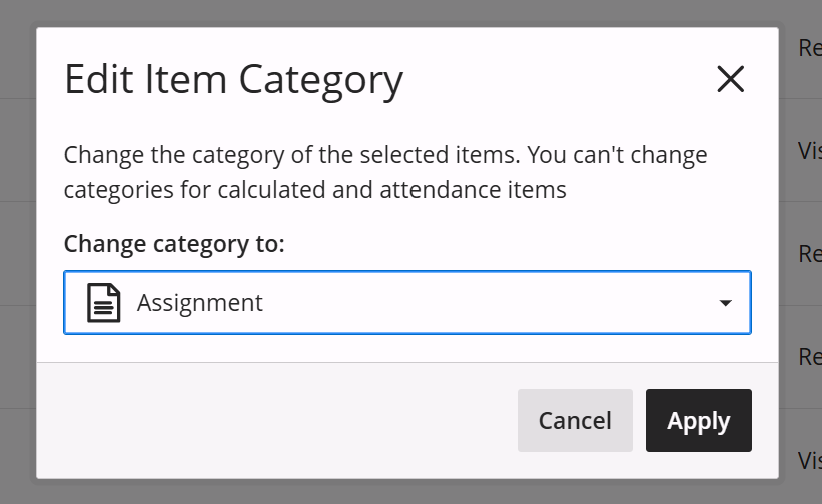
If you have a number of items in your Gradebook, you can check the categories that have been assigned to those items and make any necessary category changes, from the Manage Gradebook Items page. To do this:
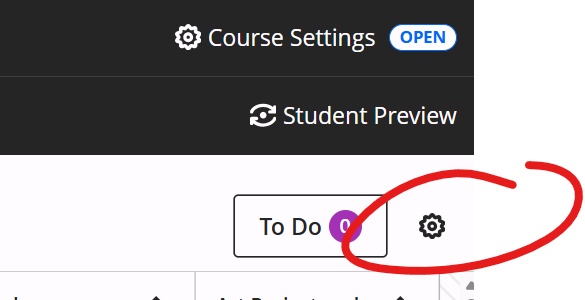
1 - From your Gradebook page, click the gear icon to open the Settings Panel
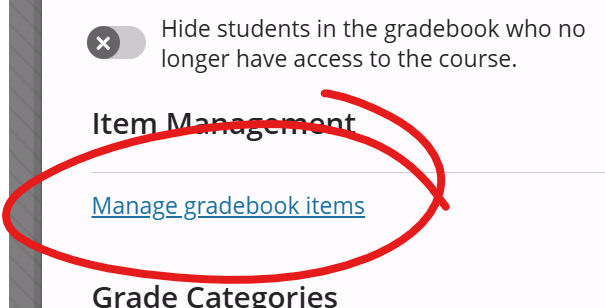
2 - Scroll down to ITEM MANAGEMENT. Click the "Manage gradebook items" link.
This opens the Gradebook Item Management page.
From here, you can see the category of many items at once. You can also toggle whether an item (e.g., gradebook column) is visible to the instructor on the Gradebook page.
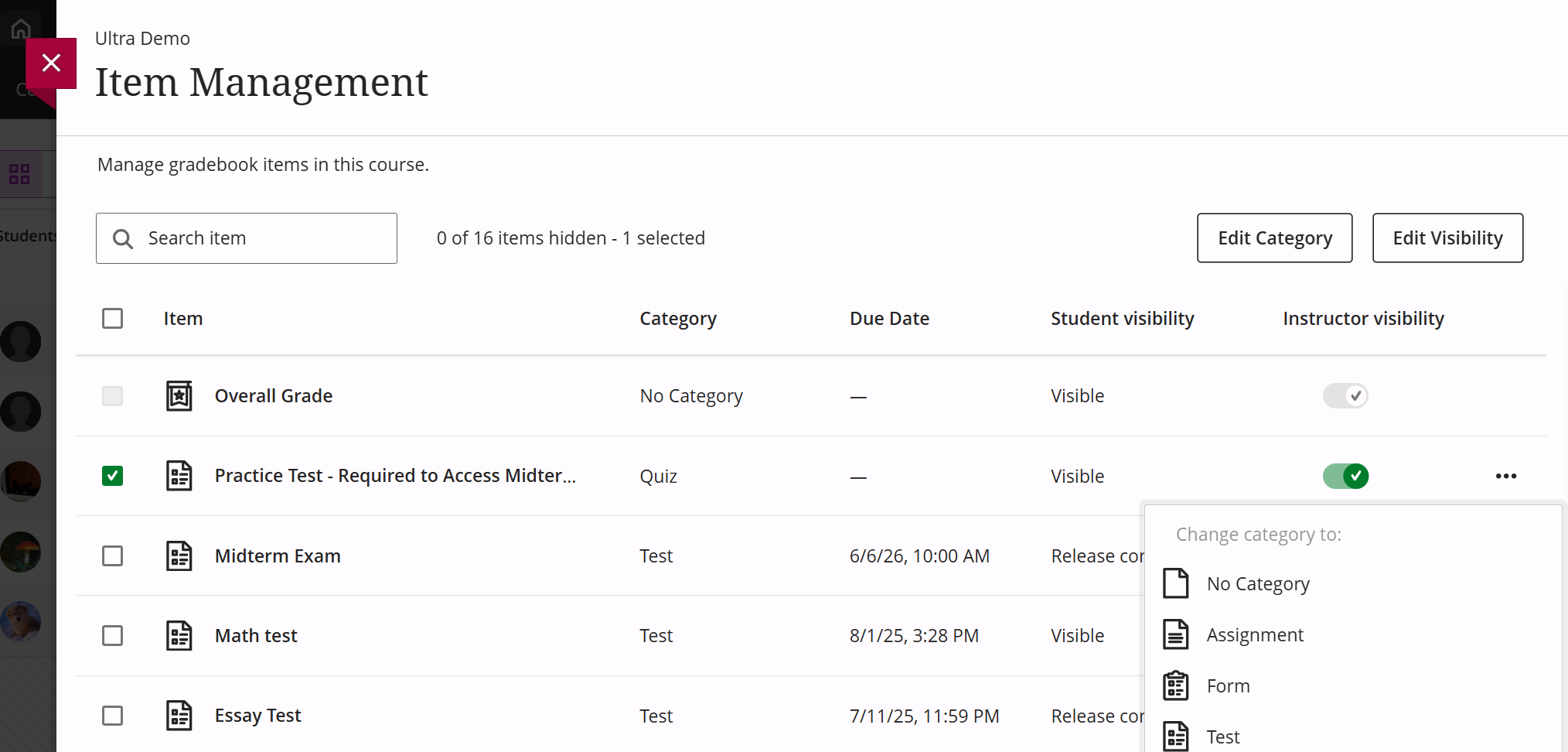
To change the category of a single item, click the "..." button on that item's row and choose the appropriate category.
To change the category for several items at once:
- Click the checkbox left of the items
- Click the EDIT CATEGORY button at the top of the page
- Select the new category and click APPLY