On your course Groups page, point to CREATE in the upper left.
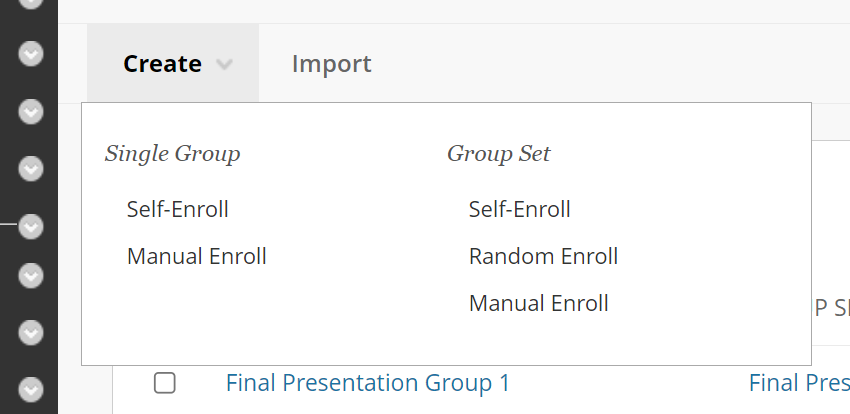
You will need to decide whether you are creating a single group, or a set of two or more groups with the same tool availability but different enrollment.
Self-Enroll: Students add themselves to a group.
Random Enroll: The instructor select a number of groups (or ideal number of group members) and Blackboard assigns the enrollment (available when creating group sets only).
Manual Enroll: The instructor selects which students are members of which group.
After making your selection you will be forwarded to the Group Properties page.
The process of creating groups in Blackboard begins by creating a group set, even if you're creating a single group.
You'll choose an enrollment style for the groups:
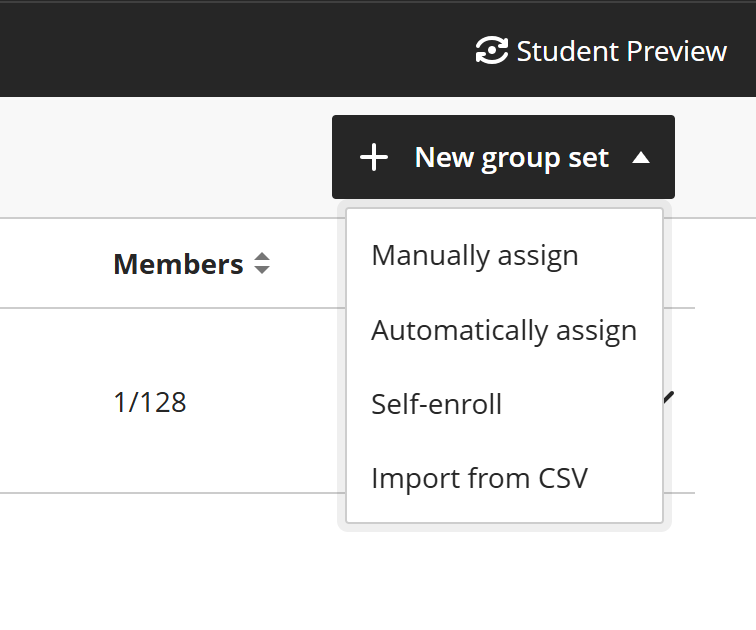
Manually Assign if you'll be enrolling students yourself.
Automatically Assign if you want Blackboard to randomize the groups.
Self-Enroll if the students will be adding themselves.
Import from CSV if you have a set of groups in an appropriately formatted comma separated values (CSV) file that you'll be using to create groups.
To set this up, go to your course's Groups tab and click the NEW GROUP SET button in the upper right. Then choose your enrollment style.
The Manually Assign Groups page covers settings and properties that to all groups and is most broadly useful.
The Self-Enroll Groups page covers the first step when creating a Self-Enroll Group set.
The Automatically Assign Groups page covers the first step when creating a Automatically Assign Group set.