On this page we'll look at how to (re-)name your group set, change your group set description, create and name groups within the set, create and edit individual group descriptions, and enroll and unenroll members from groups within the set.
Group Set Name
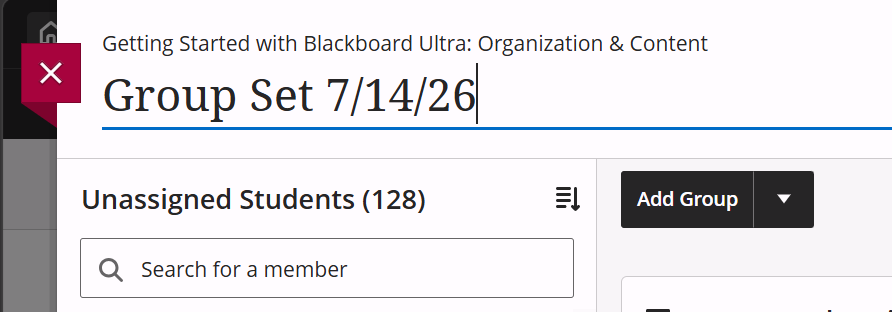
The Group Set Name defaults to "Group Set" followed by the date it was created. To change this, just click the title (in the top left) and enter your desired name. Hit enter on your keyboard or click away from the title field to save your change.
Group Set Description
To add or edit the group set description, locate the Group set description box, in the upper center of the page. Clicking the pencil icon on the right will open a panel where you can create or edit the description. If you haven't already entered a description, there will also be a link labelled "Add a group set description" in the space where the description would otherwise appear.

Add Groups
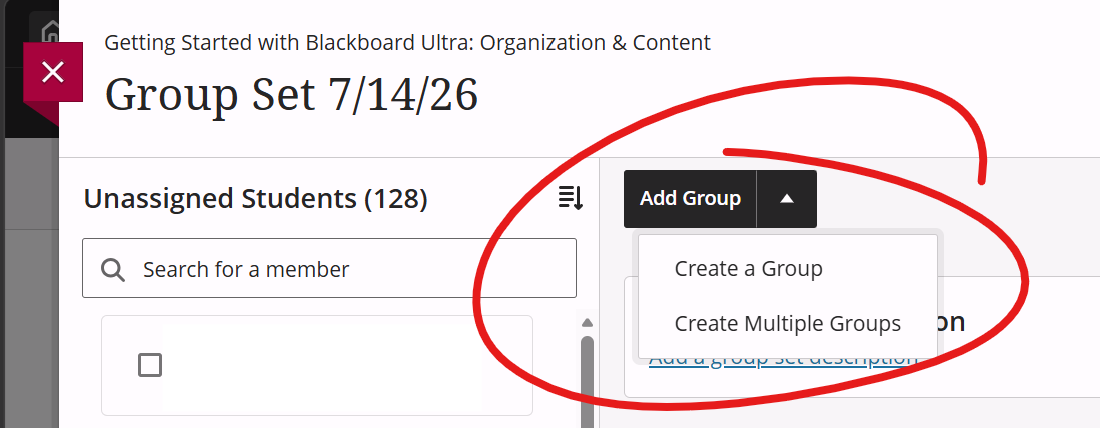
To add groups to the set, click the ADD GROUP button in the top-middle. You can add a single group, in which case you'll be prompted to enter a group name and description, or you can add multiple groups, in which case you'll be prompted to enter the number of groups you wish to add. If you add multiple groups, they'll be named "Group 1", "Group 2", etc.
Edit a Group Name and Description
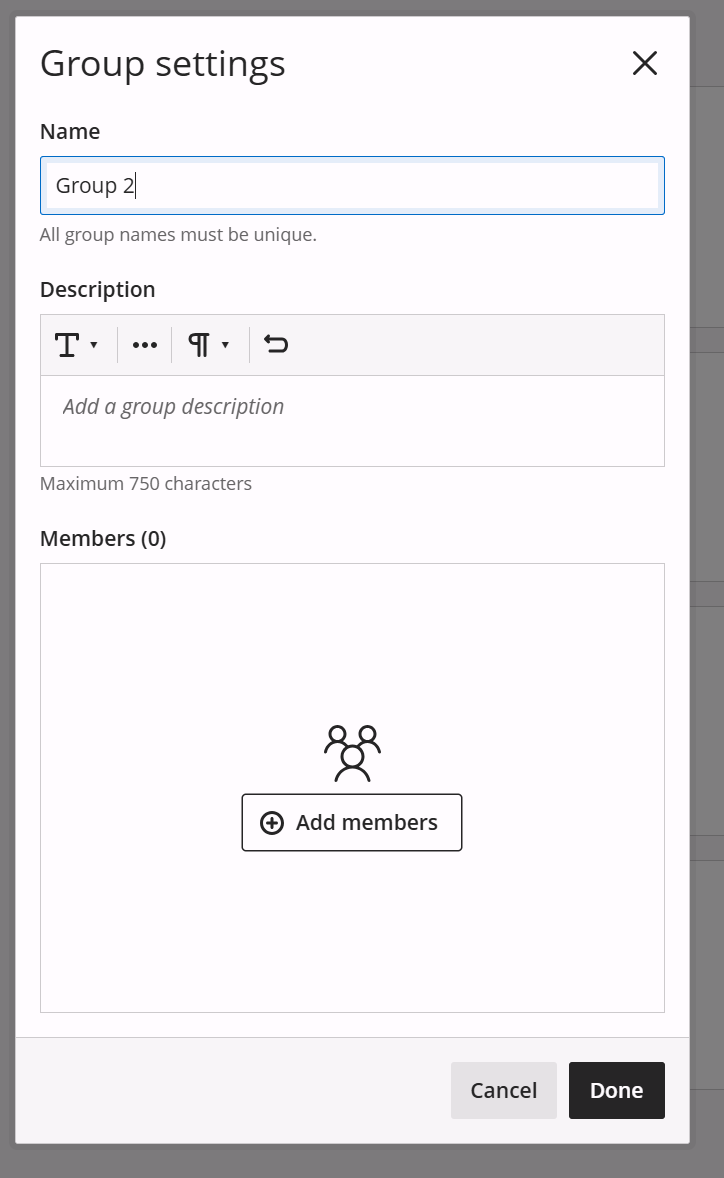
To enter or edit a group name and / or description, click the "..." button in the top right of the group box, then choose GROUP SETTINGS.
This will open an overlay window where you can enter or edit the group name and description. You can also click the ADD MEMBERS button to add folks to the group.
Add Group Members
There are a few ways to add members to a group.
The left side of the groups page lists all the folks in the class who are not members of a group in this set. To add those folks to a group, check the box left of their name, then click the "+Assign Here" button on the group you wish to add them to (the "+Add Members" button gets replaced with "Assign Here").
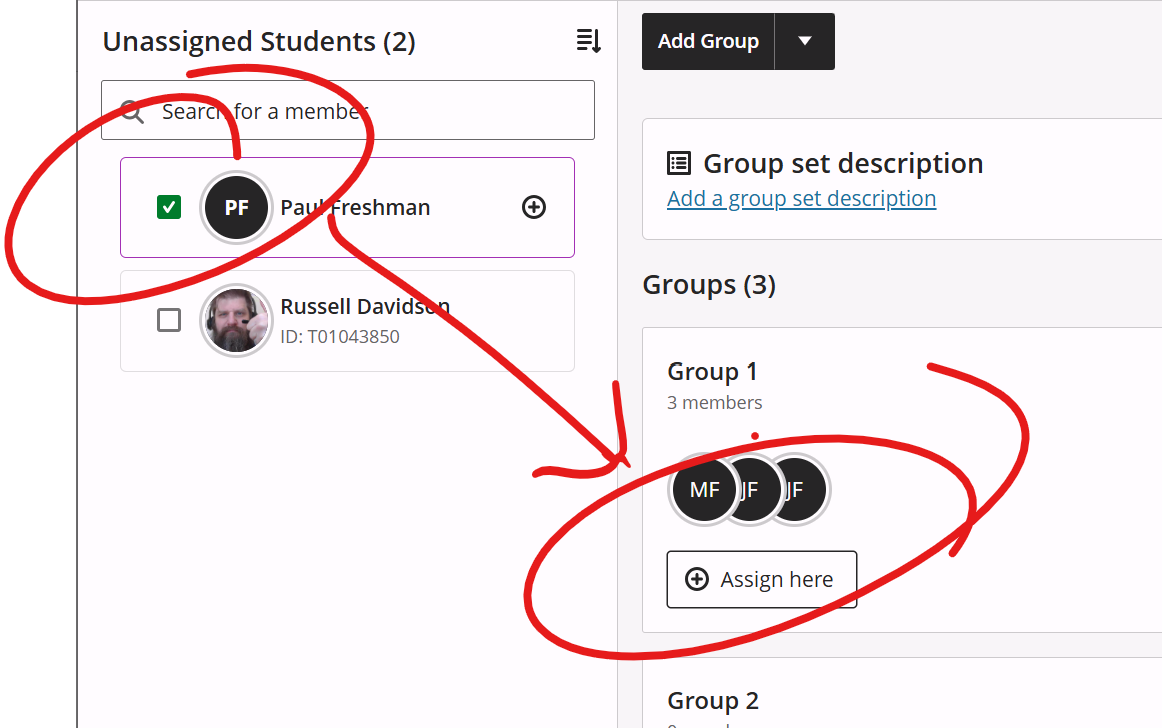
OR you can click the ADD MEMBERS button on the group lets you select members to add and select names there.
OR you can go to the Group Settings page (see EDIT GROUP NAME AND DESCRIPTION above) and add members there.
View / Remove Group Members
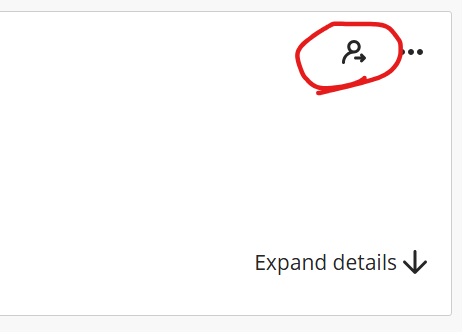
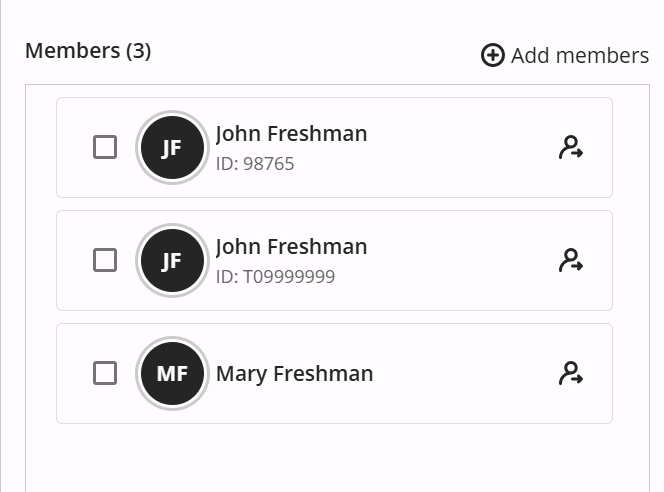
You can view the members by clicking the Expand Details button in the lower right of the group box, or by going to the Group Settings page.
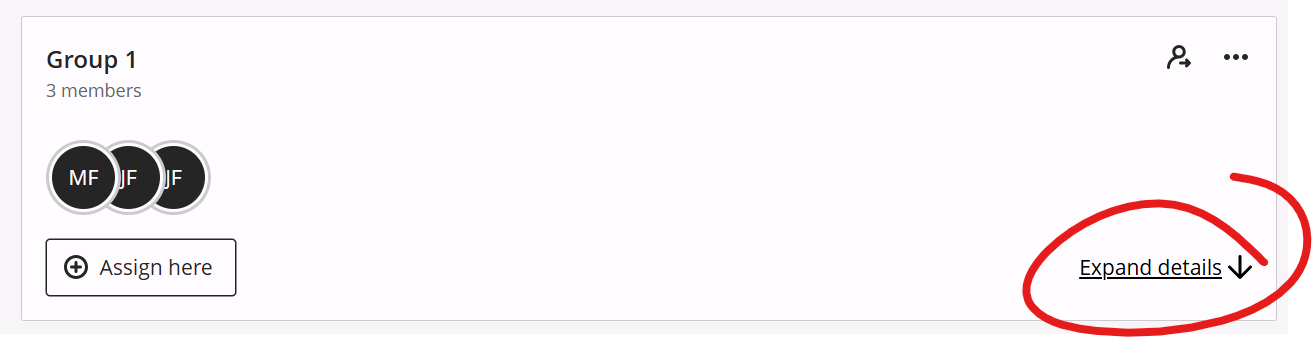
You can remove an individual from either of these lists by clicking the remove member icon (a person with an arrow) on the right. To remove more than one member, you can check the boxes for the members you wish to remove, then click the remove member button for any one of the folks you've selected.
To remove all group members, click the Unassign All Members button in the top-right of the group (next to the "..." button)