If you have several media files that you want to share with the same person or group of people, the easiest way to go about this is to set up a Shared Media Folder. Give the relevant folks access to that folder, then put all the media files you wish to share in that folder.
To share a folder,
1 - Go to https://udmercy.yuja.com
2 - Select the folder.
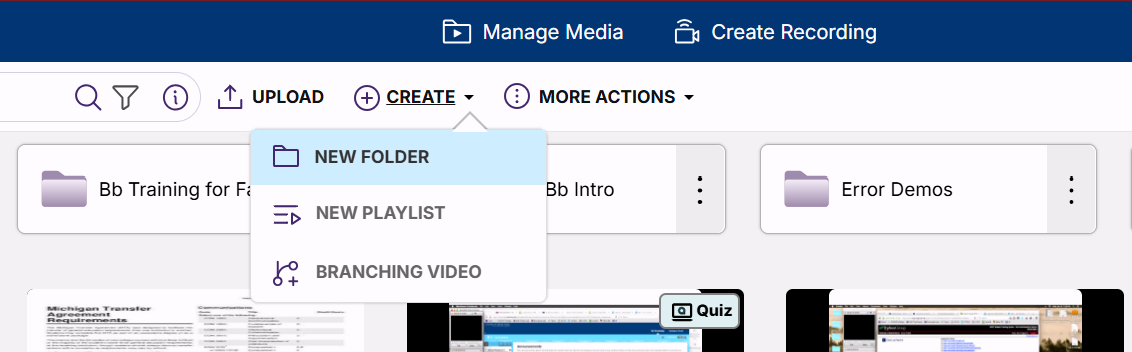
If you do not have the folder created, click CREATE at the top of your media library page and choose NEW FOLDER, then Name your new folder.
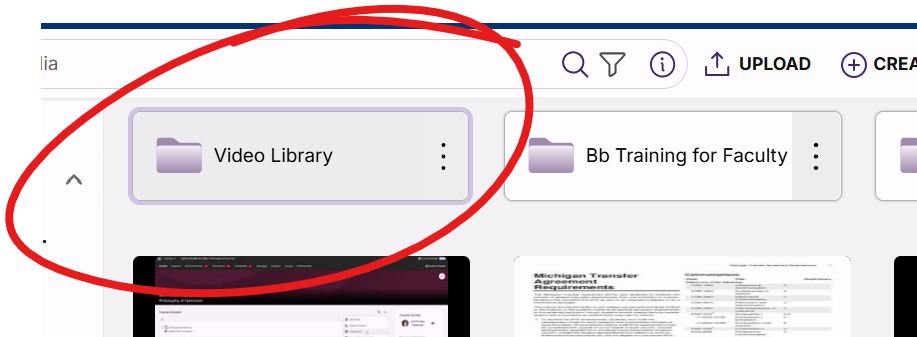
To select a folder without opening it, click the folder while holding the CTRL button on your keyboard. A correctly selected folder will be outlined in purple.
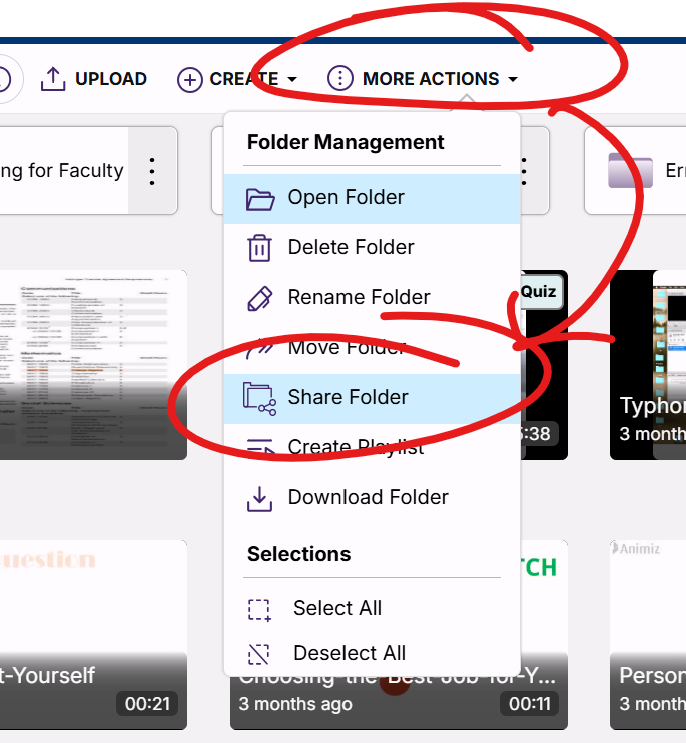
3 - With the folder you wish to share selected, click MORE ACTIONS at the top of the page and choose SHARE FOLDER.
4 - Find and select the folks you wish to share media with in the SHARE WITH box. Then select the type of access you want these folks to have.
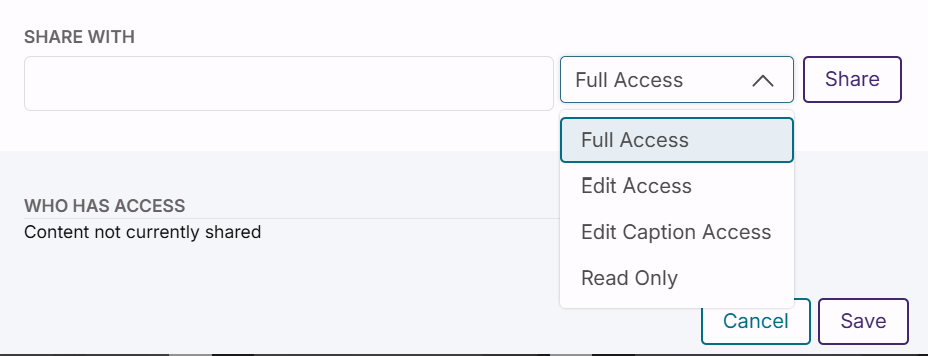
FULL ACCESS means the folks you're sharing the folder with use the folder as if it were their own (including delete videos from the folder).
EDIT ACCESS gives folks access to everything in the folder (so they can publish videos, edit them, create quizzes from them, etc) but does not let them delete items.
EDIT CAPTION ACCESS only lets folks make changes to captions on the videos in the folder.
READ ONLY lets folks view the items in the folder (and publish them to their courses) but not make any changes or add any content.
5- Click SAVE to save your changes.