By: Michael L. Verdusco, CETL Director
The CETL website has a new homepage and menu organized around what you need to do. Whether you want to register for a session, get help with Blackboard, or rethink a course, the updated layout helps you find the resources you need.
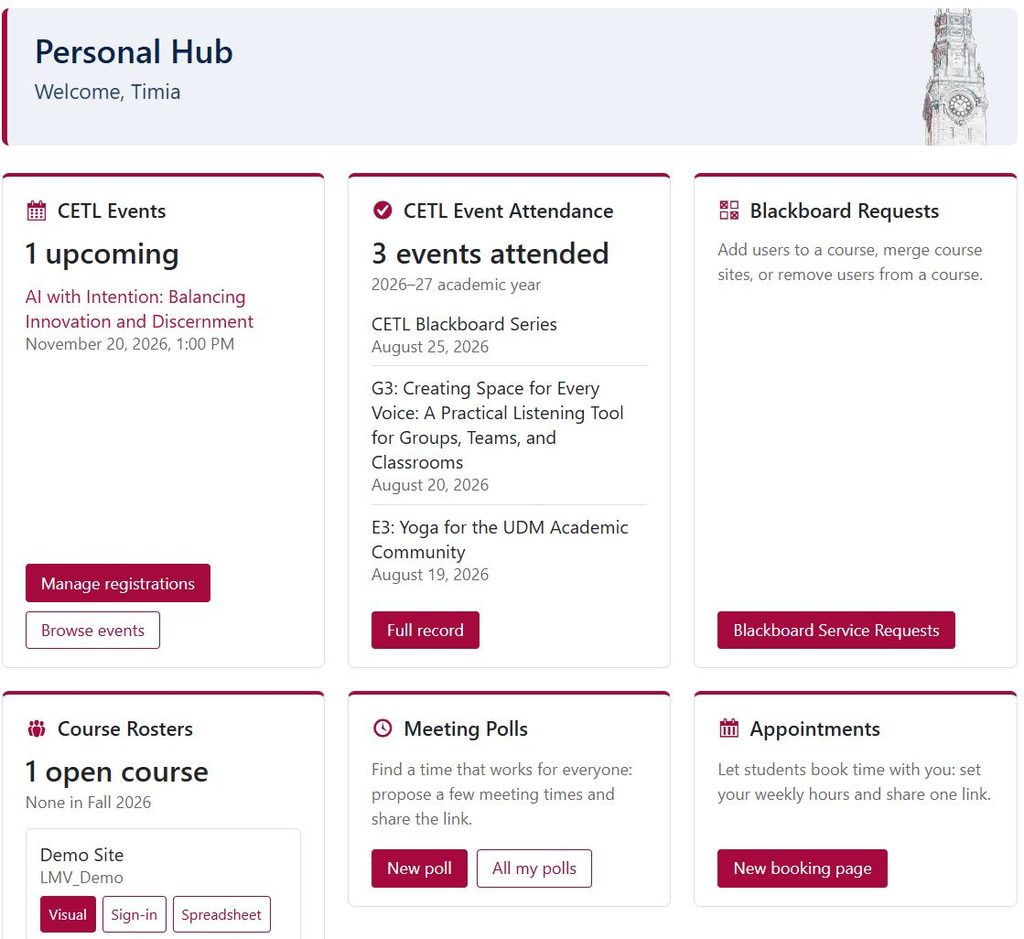
The update also introduces My Hub, a personal page that brings your CETL registrations, attendance records, Blackboard course rosters, and scheduling tools together in one place.
Find What You Need on the Homepage
The homepage groups resources by task:
- Upcoming Sessions: See upcoming sessions, open the Event Calendar, register for Colleague Development Days, and check your registrations.
- Get Help: Search the Knowledge Base, follow step-by-step Blackboard and technology guides, submit a Blackboard service request, or request a one-on-one consultation.
- Teaching Guides: Explore practical guides on artificial intelligence, student belonging, growth mindset, curriculum design, and universal design and accessibility, along with articles and faculty viewpoints.
- In Practice: Find programs that put teaching ideas into practice, including PRISM recognition, course observations, the Mid-Semester Assessment of Teaching, Syllabus Re:Design, and the Scholarship of Teaching and Learning.
- My Hub: Access your personal CETL records and tools, described below.
The menu at the top of every page provides access to Events, Guides, Get Help, In Practice, New Faculty, About, and Hub, so you can move between these areas from anywhere on the site.
Access Your Personal Tools in My Hub
Sign in to My Hub with your Detroit Mercy account to view your CETL activity, access course rosters, and manage scheduling.
CETL Events and Attendance
My Events lists the upcoming CETL events you are registered for.
- Manage registrations shows your registrations and lets you cancel a registration.
- Browse events opens the CETL sessions page, where you can register for additional events.
My Attendance shows how many CETL events you have attended during the academic year, which runs from August 1 through July 31.
Select Full record to view past events you registered for, including events without recorded attendance. You can filter the list by academic year and select Download CSV to save a copy for your records or annual review.
CETL records attendance manually after each event. Each event displays one of three statuses:
Blackboard Courses and Requests
Course Rosters shows Blackboard courses for the current term in which you are an instructor, teaching assistant, or course builder. Each course offers three roster formats:
- Visual: A printable roster with student initials, email links, and a Copy all emails option.
- Sign-in: A printable sign-in sheet sorted by last name, with blank rows for walk-ins.
- Spreadsheet: A CSV file that opens in Excel and includes a blank Signature column.
Blackboard Requests opens the CETL request form for adding users to a course, merging course sites, or removing users from a course.
Meeting Polls
Meeting Polls helps you find a time that works for a group.
- Create a poll, select dates on the calendar, and add times for each day.
- Select Create & open poll, or select Save as draft to finish later.
- Share the poll link,or select Email invite to start an invitation in your own email application.
- Participants can vote using the link. You choose who can see the results.
- When you are ready to finalize the poll, select Choose this time under the results.
You can have up to 25 open or draft polls. A poll closes automatically 30 days after its last proposed time and is deleted 12 months after it closes.
Appointments
Appointments let you create booking pages for advising, office hours, or consultations.
- Create a booking page and set your weekly availability, appointment length, and days off.
- Share the page link. Students and other visitors can book with their name and email address; no sign-in is required.
- You and the person booking receive a confirmation email with a calendar file, followed by a reminder approximately one day before the appointment.
From My Hub, you can also:
- Pause a booking page or block an individual time slot.
- Cancel an appointment and include a message.
- Download a CSV file of bookings.
- Subscribe to a private calendar feed of your appointments.
You can have up to 10 booking pages. Appointments are deleted six months after they take place.
Share Your Feedback
We welcome your feedback on the updated website and My Hub. Send suggestions to cetl@udmercy.edu or call the CETL Main Office at 313-578-0580.